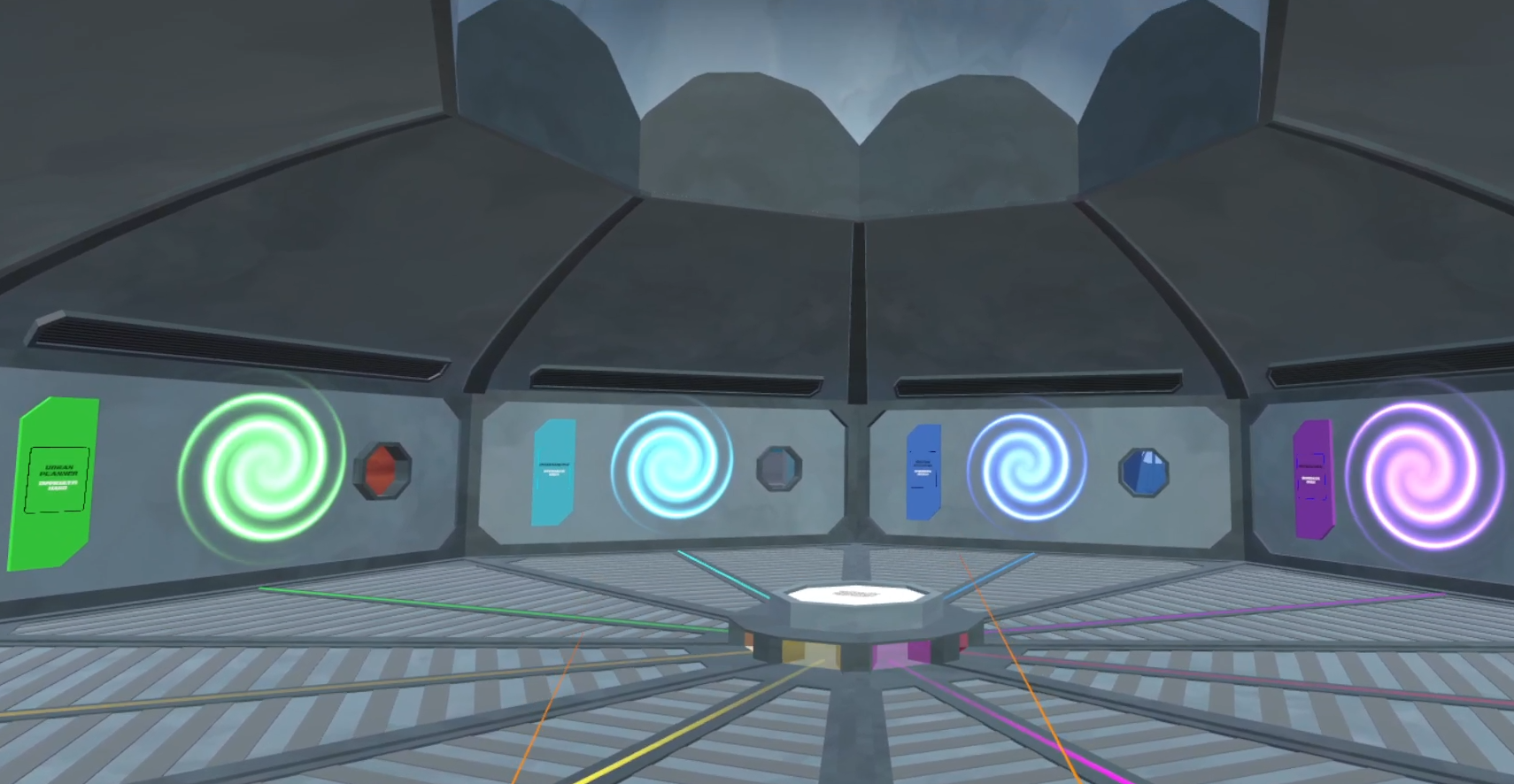
Developed for Enterprise Technology, FutureScape is a VR career exploration tool developed in Unity and lets middle schoolers try out careers across 15 STEAM industries through short, hands-on minigames. The project features interactive minigames, each attempting to emulate different careers such as pharmacology, manufacturing, forensic science, etc.
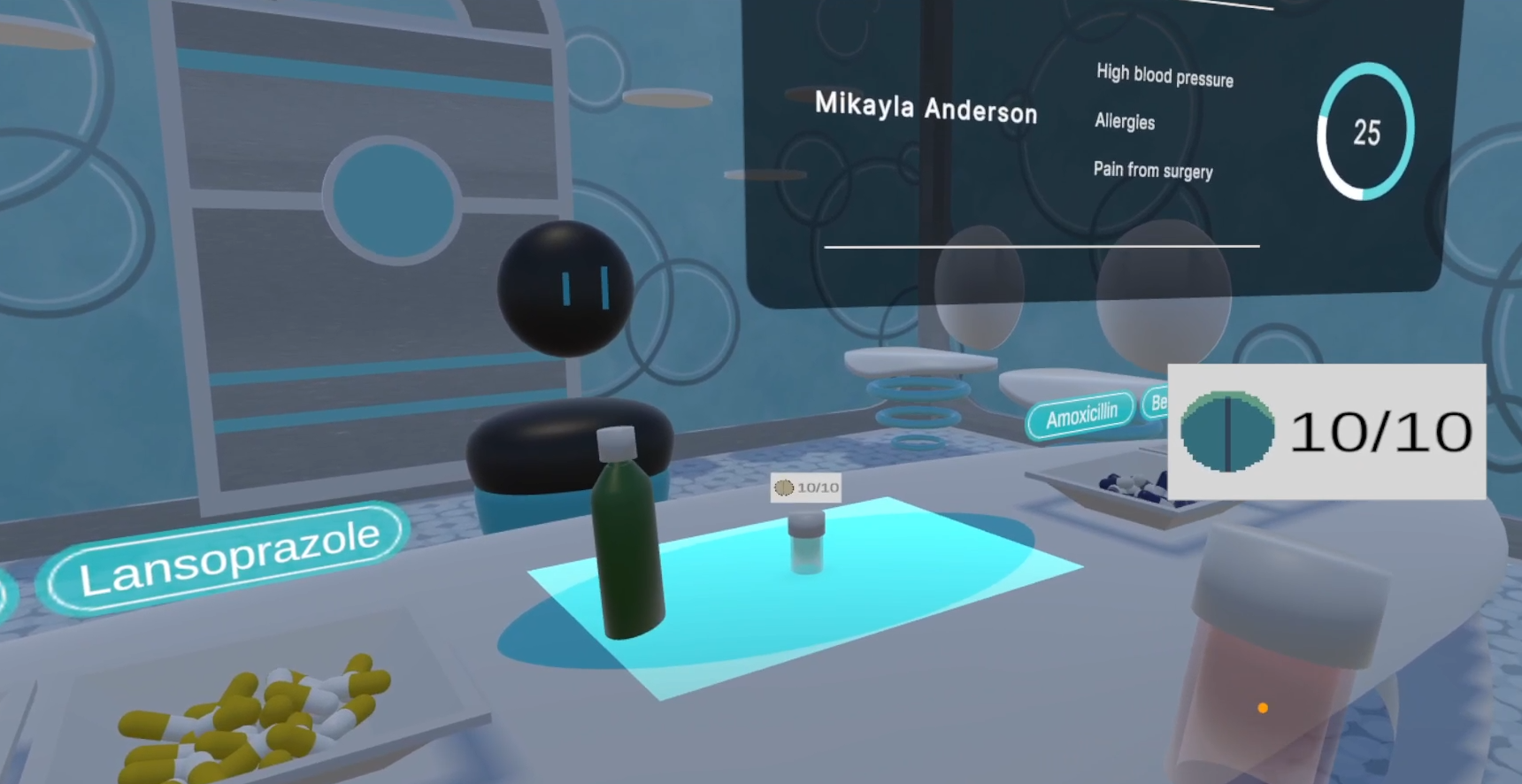
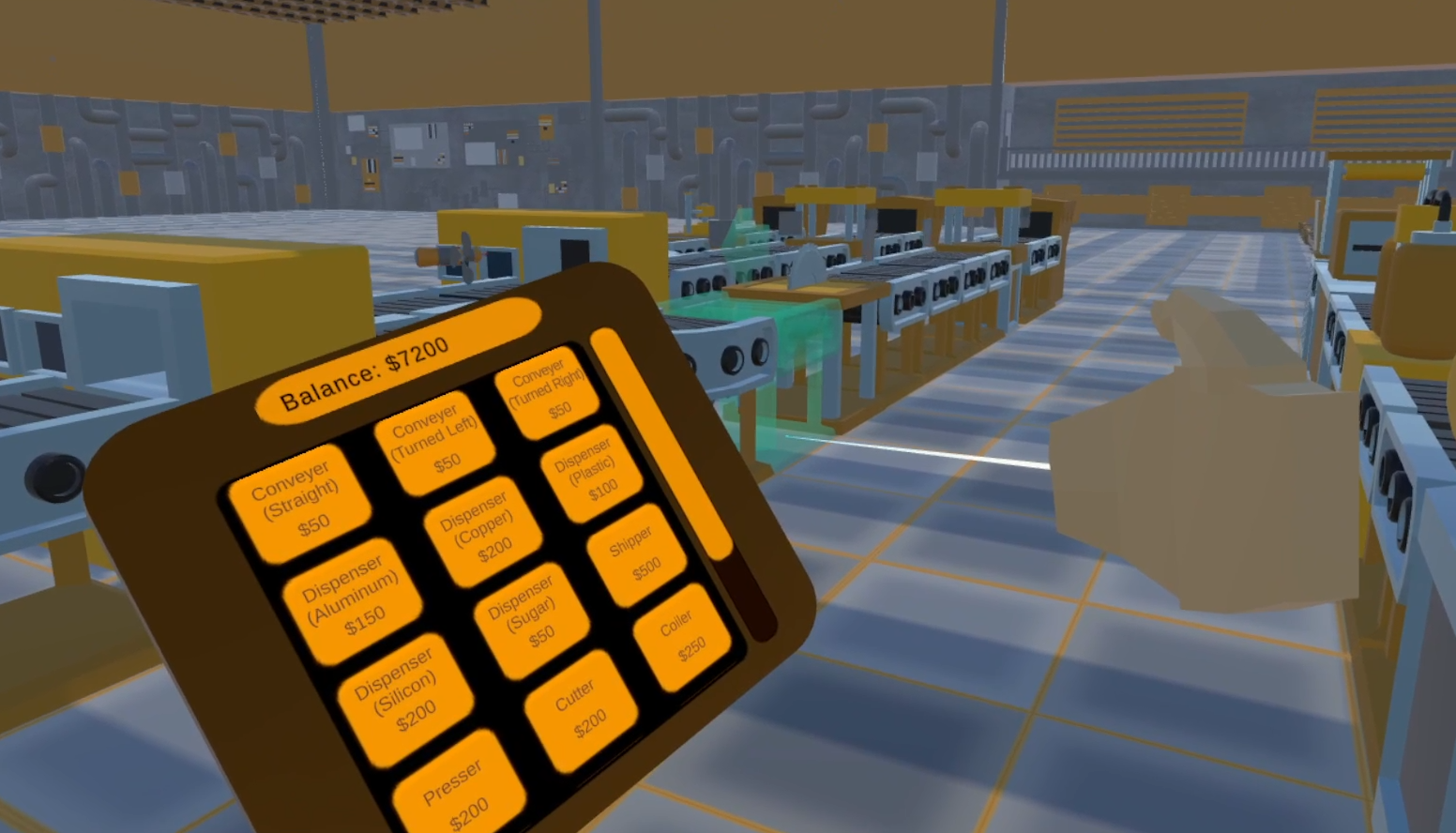
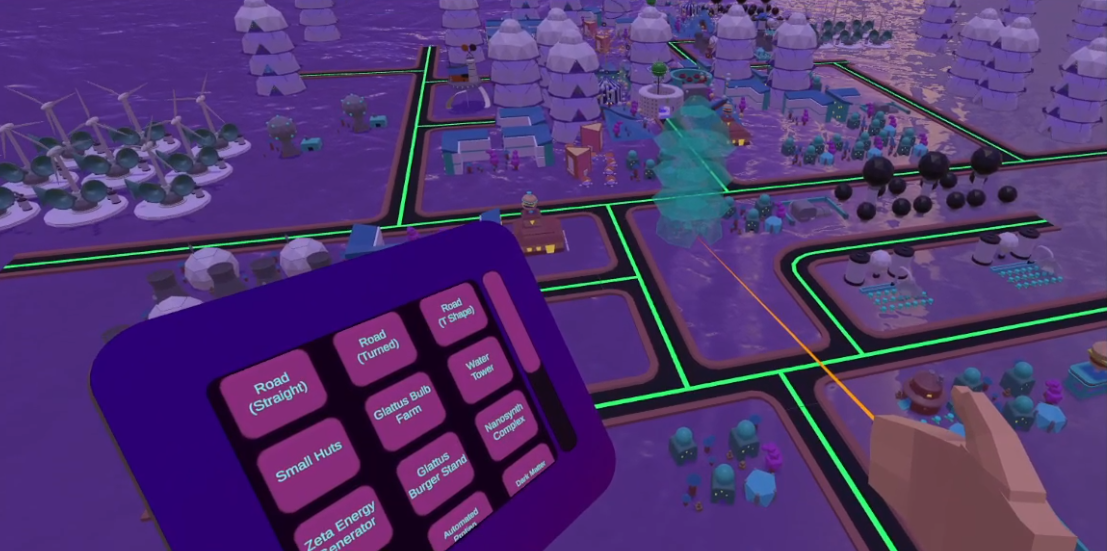
I specifically designed and developed the pharmacy, manufacturing, and urban planning minigames. In the pharmacy minigame, players act as pharmacists, dispensing medications to patients within a time limit. The manufacturing minigame challenges players to build assembly lines and create products while managing a budget. The urban planning minigame involves designing a city and managing resources and budgeting effectively.
TECHNICAL FEATURES
Pharmacy Minigame
The Pharmacy minigame turns a pharmacist's job into a two-minute race. Players read each patient's symptoms, prepare the right medication and hand it over before the clock runs out.
I built the original Pharmacy game loop in late 2023 - the medication system, pill bottles, patient spawning and difficulty scaling. Teammates later added the medicine guidebook, desktop pickup tooltips and a reworked round timer. This post walks through how each piece works, with code taken straight from the project.
The player only ever touches physical objects, and the relay pad is the single doorway into the game rules. Everything the player sees afterwards is driven by events the manager fires.
The code lives in 15 C# scripts under Assets/Scripts/Minigames/Pharmacy: eight gameplay scripts, one ScriptableObject definition and six UI scripts.
Core Gameplay Loop
A round starts when the player presses Start and ends when the 2-minute clock hits zero. In between, the player cycles through patients: read the symptoms, prepare a medication, place it on the pad.
A wrong item is simply ignored, so the only cost of a mistake is lost time. Players look up which medication treats which symptom in the in-game medicine guidebook.
Symptoms and cures are data, not code.
Every ailment in the game is a ScriptableObject asset. A SymptomData asset holds the text the patient shows and the one medication that cures it.
Medications are one enum. Every grabbable tonic bottle, cream tube and pill bottle carries a Medication component that says which medication it is. Checking a cure is then a plain enum comparison.
// Medication.cs
publicenum MedicationType // List of all possible medications in the game
{
promethazine,
diphenhydramine,
bismouthSubsalicylate,
hydrocortisone,
clotrimazole,
triamcinolone,
ibuprofen_pill,
tramadol_pill,
// ...four more pills, three half-pill variants
emptyBottle
}
publicclassMedication : MonoBehaviour
{
[SerializeField] publicstring medicationName;
[SerializeField] public MedicationType medicationType;
public Transform tooltipAnchor;
}
The game ships with 12 symptom assets. Adding an ailment takes no code: a designer creates the asset from Unity's Create menu and drops it into the game manager's list.
// Symptoms
Symptom
Cure
Form
Nausea and vomiting
Promethazine
Tonic
Allergies
Diphenhydramine
Tonic
Upset stomach and diarrhea
Bismuth subsalicylate
Tonic
Second-degree sunburn
Hydrocortisone
Cream
Fungus on the hands and feet
Clotrimazole
Cream
Eczema and itching
Triamcinolone
Cream
Fever
Ibuprofen
Pills
Pain from surgery
Tramadol
Pills
High blood pressure
Lisinopril
Pills
Cough and shortness of breath
Benzonatate
Pills
Stomach infection
Amoxicillin
Pills
Acid reflux and ulcers
Lansoprazole
Pills
Symptoms and the cures for those ailments.
Tonics and creams are ready to hand over as they sit on the shelf. Pills have to be counted into a bottle first, which is the game's main hands-on mechanic.
Difficulty Scaling
Each new patient gets a random name from a list of 10 and a set of random symptoms. The number of symptoms equals the current difficulty level. The manager fires an event for each symptom so the UI can fill one row per ailment.
Difficulty runs from 1 symptom up to MAX_SYMPTOM_COUNT, which is 3. After every third cure, the next patient walks in with one more symptom. A coroutine handles the hand-off between patients:
The short delay lets the cure particles and sound play before the next patient appears. Randomizing the pitch between 0.8 and 1.2 keeps a sound the player hears dozens of times from feeling mechanical.
The patient is a prefab that PatientSpawner instantiates at the door and hands a waypoint. A small Patient script walks it to the counter and switches the Animator out of its walk cycle on arrival:
Pills sit loose in trays as round tablets and capsules. To dispense them, the player drops pills one by one into an empty bottle. The bottle's trigger collider counts each pill, and the first pill in decides what the bottle will become.
// PillBottle.cs
privatevoidOnTriggerEnter(Collider other)
{
if (!pillEvalFlag && pillCount < requiredPillCount && other.gameObject.GetComponent<Pill>() != null)
{
Pill pill = other.gameObject.GetComponent<Pill>();
// The first pill sets the bottle's typeif (currentMedicationType == MedicationType.emptyBottle)
{
currentMedicationType = pill.pillType;
OnNewPill?.Invoke(pill.pillSprite); // show this pill's icon
Destroy(other.gameObject);
pillCount++;
}
elseif (currentMedicationType == pill.pillType)
{
Destroy(other.gameObject);
pillCount++;
}
CheckBottle();
OnPillUpdate?.Invoke(pillCount, requiredPillCount);
}
}
A pill of a different type is never destroyed or counted, so a bottle can't end up holding a mix. Once five matching pills are in, CheckBottle writes the final type onto the bottle's Medication component and puts the cap on.
This keeps delivery simple. A filled bottle is just another Medication, so the delivery pad checks it exactly like a tonic or a cream. An unfinished bottle still reads emptyBottle, which cures nothing.
A small world-space counter floats over the bottle and shows progress like "3/5" next to the pill's icon. It plays a random pill-drop sound on each update and copies the camera's rotation every frame so it always faces the player.
A pad on the counter sits between the player and the patient. When anything lands on it, the pad looks for a Medication component and passes it to the game manager.
The manager compares the medication against every symptom the patient still has. On a match, it removes that symptom, asks the pad to lock the item in place and checks whether the patient is fully cured.
Socketing snaps the item to the next free socket point and takes it out of play. Disabling its XRGrabInteractable stops a VR player from grabbing it back. Making the rigidbody kinematic stops physics from knocking it off the counter.
A wrong medication is never socketed, so it stays loose on the pad for the player to pick back up. When the patient is cured, ClearSockets destroys everything on the counter and resets the socket index for the next patient.
Manufacturing Minigame
The Manufacturing minigame drops a student onto an empty factory floor with $0 and one goal: build production lines that turn raw materials into products worth money. You buy machines, snap them onto a grid, link them with conveyors and ship what comes out the end. Each sale pays for the next, more complex line, from $25 sodas up to $150 jet turbines.
Components are machines that can be linked via conveyor belts to create assembly lines. A complex system handles items that interact with these components: input item(s) are detected and accepted if a possible output item can be created.
Sandbox Building
Every machine occupies one 1×1 cell, so building comes down to two questions: which cell is the player pointing at, and is it free?
Snapping
ManufacturingGrid.SnapToGrid takes the point where the player's ray hits the floor and moves it to the nearest whole-number grid point. It reads the fractional part of x and z, works out which quadrant of the cell the hit landed in, and returns that corner.
// ManufacturingGrid.cs
publicstatic Vector3 SnapToGrid(Vector3 objPos)
{
if (objPos.x < 0 || objPos.z < 0) // Selection must be positive for function to workreturn Vector3.zero;
float differenceX = objPos.x - Mathf.Floor(objPos.x);
float differenceZ = objPos.z - Mathf.Floor(objPos.z);
if (differenceX > 0.5f && differenceZ > 0.5f) // 1st quadrant: top right pointreturnnew Vector3(Mathf.Ceil(objPos.x), 0, Mathf.Ceil(objPos.z));
if (differenceX < 0.5f && differenceZ > 0.5f) // 2nd quadrant: top left pointreturnnew Vector3(Mathf.Floor(objPos.x), 0, Mathf.Ceil(objPos.z));
if (differenceX < 0.5f && differenceZ < 0.5f) // 3rd quadrant: bottom left pointreturnnew Vector3(Mathf.Floor(objPos.x), 0, Mathf.Floor(objPos.z));
// 4th quadrant: bottom right pointreturnnew Vector3(Mathf.Ceil(objPos.x), 0, Mathf.Floor(objPos.z));
}
Occupancy
The grid itself is a 100×100 array of structs covering the floor's XZ plane. The factory floor sits at positive world coordinates, so a snapped position cast to int is already the array index. There is no conversion layer between world space and grid space.
// ManufacturingGrid.cs
publicstruct Grid
{
publicbool availability; // set to true when a machine is placed in the cellpublic GameObject gameObject; // the machine occupying the cell
}
publicclassManufacturingGrid
{
privateconstint MAX_GRID_SIZE = 100;
private Grid[,] gridSpace = new Grid[MAX_GRID_SIZE, MAX_GRID_SIZE];
publicboolCheckAvailableGridSpace(int x, int z)
{
if (gridSpace[x, z].availability == false)
returntrue;
returnfalse;
}
publicvoidUpdateGridSpace(GameObject gridObject, int x, int z, bool availability)
{
gridSpace[x, z].availability = availability;
gridSpace[x, z].gameObject = gridObject;
}
}
ManufacturingGrid is a plain C# class, not a MonoBehaviour. ManufacturingGameManager creates it in Awake, and every other script reaches it through the manager. Each frame the selection system snaps the reticle and asks the grid whether that cell is free. Placing a machine writes the new instance into its cell; selling it clears the cell.
Object Placement
SelectionManager handles aiming, placing, rotating and selling machines for both the VR rig and the desktop first-person rig in a single script. That works because both rigs aim with an XR Interaction Toolkit XRRayInteractor; the desktop rig simply casts its ray from the camera. The aiming code only has to decide which ray to read.
// SelectionManager.cs
privatevoidAwake()
{
// ...if (desktopRig != null && desktopRig.activeInHierarchy)
useDesktopControls = true;
// Desktop input arrives as static C# events from the first-person controller
FirstPersonController.OnObjectPlace += RaiseOnObjectPlace;
FirstPersonController.OnObjectRotate += RaiseOnObjectRotate;
FirstPersonController.OnObjectSell += RaiseOnObjectSell;
}
publicvoidUpdateReticlePosition()
{
RaycastHit raycastHit;
if (useDesktopControls)
desktopRayInteractor.TryGetCurrent3DRaycastHit(out raycastHit);
else
VRRayInteractor.TryGetCurrent3DRaycastHit(out raycastHit);
reticlePosition = raycastHit.point;
selectedPosition = ManufacturingGrid.SnapToGrid(reticlePosition);
if (!raycastHit.collider)
return;
onGround = raycastHit.collider.gameObject.CompareTag("Ground");
CheckCollision(); // ask the grid whether the cell is free
OnSelection?.Invoke(availability); // tell the preview gizmo
cellSelectorGizmo.transform.position = selectedPosition;
}
The two platforms deliver input differently:
VR polls the Quest's right controller every frame with InputDevice.TryGetFeatureValue. A small InputData component finds both controllers and the headset, and re-acquires any device that becomes invalid, so a controller that wakes up late still works.
Desktop uses Unity Input System actions in FirstPersonController, which raise static events. SelectionManager turns those events into flags such as placing_removing and rotating.
Both paths meet in one condition, so the placement logic is written once:
// SelectionManager.cs
privatevoidPlaceComponent()
{
if (UIMenuController.IsAnyMenuOpen) return; // never build through an open menuif (selectedObject == null) return;
ManufacturingComponent selectedObjectMFC = selectedObject.GetComponent<ManufacturingComponent>();
if (!availability || selectedObjectMFC == null) return;
bool triggerValue;
if (onGround && canPlace &&
((useDesktopControls && placing_removing) || // desktop: Select held
(inputData.rightController.TryGetFeatureValue(
CommonUsages.triggerButton, out triggerValue) && triggerValue))) // VR: trigger
{
StartCoroutine(PlaceComponentDelay()); // cooldown
gameManager.UpdatePlayerBalance(-selectedObjectMFC.value); // pay for the machine
GameObject newObject = Instantiate(selectedObject, selectedPosition,
Quaternion.Euler(selectedRotation), gameManager.componentContainer);
UpdateGridSpace(newObject, true); // mark the cell occupied// ... tutorial hooks
}
}
private IEnumerator PlaceComponentDelay()
{
canPlace = false;
yieldreturnnewWaitForSeconds(placeDelay);
canPlace = true;
}
Because placement checks a held flag rather than a single press, a player can hold the button and sweep the ray to lay a whole row of conveyors, one piece every 0.5 s. Rotation and selling use the same coroutine-cooldown pattern: each rotate press adds 90° to selectedRotation.y (0.5 s cooldown), and each sell click has a 0.25 s cooldown.
Selling is a mode rather than a separate tool. Holding grip in VR, or right mouse on desktop, flips removeMode on. While it is on, the same place button destroys the machine under the ray, clears its grid cell and refunds its full price. Desktop players can also press Q to sell instantly.
// Placement Actions
Action
VR Controller
Desktop
Place a machine
Trigger (hold to lay a row)
Left mouse or E (hold to lay a row)
Rotate the selection 90°
A button
R
Sell a machine
Hold grip, then trigger
Hold right mouse, then left mouse; or Q
Open the build menu
Menu button
B
Player build actions on different platforms.
Polymorphism And Machines
Every placeable piece, from a $50 conveyor to the $500 shipper, inherits from ManufacturingComponent. The base class holds what all machines share: a price, a list of recipes, an output spawn point, the preview mesh and the direction items should travel after touching it.
publicenum MovementDirection { right, forward, up }
publicclassManufacturingComponent : MonoBehaviour
{
[SerializeField] publicintvalue; // build price, refunded on sale
[SerializeField] protected ManufacturingRecipe[] manufacturingRecipes;
[SerializeField] protected Transform outputSpawnpoint;
[SerializeField] public Mesh mesh; // used by the ghost preview
[SerializeField] public MovementDirection itemMovementDirection;
[HideInInspector] public Vector3 movementDirection = Vector3.zero;
protected ManufacturingGameManager gameManager;
protectedvirtualvoidAwake()
{
GameObject gmObj = GameObject.FindGameObjectWithTag("Manufacturing Manager");
gameManager = gmObj.GetComponent<ManufacturingGameManager>();
switch (itemMovementDirection)
{
case MovementDirection.forward: movementDirection = transform.forward; break;
case MovementDirection.up: movementDirection = transform.up; break;
default: movementDirection = transform.right; break;
}
// ...
}
protectedvirtualvoidSpawnItem(Transform location, GameObject obj)
{
if (location != null && obj != null)
{
Transform parentTrans = gameManager.itemContainer;
GameObject newObj = Instantiate(obj, location.position, Quaternion.identity, parentTrans);
newObj.GetComponent<ManufacturingItem>().ChangeMovementDirection(movementDirection);
}
}
}
The enum-to-vector switch is the small detail that makes rotation free. Awake runs after the machine is instantiated with the player's chosen rotation, so transform.right already points the way the player turned it. A rotated machine sends items in its new direction with no extra code.
Economy System
Money is the game's progression system. Students start at $0 and earn it two ways: a passive $10 every 2 seconds, and the sale price of every finished product that reaches a Shipper. Only the four end products are worth anything; raw and intermediate items sell for $0.
ManufacturingGameManager owns the balance and broadcasts every change through a C# event:
// ManufacturingGameManager.cs
publicevent Action<int> OnBalanceUpdate;
[SerializeField] privateint passiveIncome = 0; // $10 in the scene
[SerializeField] privatefloat secondsTillPassiveIncome = 1; // 2 s in the scenevoidStart()
{
ResetBalance();
OnBalanceUpdate?.Invoke(playerBalance);
StartCoroutine(PassiveIncomeRoutine());
}
private IEnumerator PassiveIncomeRoutine()
{
float timePassed = 0;
while (true)
{
timePassed += Time.deltaTime;
if (timePassed >= secondsTillPassiveIncome) // time for the next payment
{
playerBalance += passiveIncome;
OnBalanceUpdate?.Invoke(playerBalance);
timePassed = 0;
}
yieldreturnnull; // wait a frame
}
}
publicvoidUpdatePlayerBalance(intvalue)
{
playerBalance += value;
if (playerBalance < 0) // so the balance never goes negative
playerBalance = 0;
OnBalanceUpdate?.Invoke(playerBalance);
}
Passive income did not start as a coroutine. An earlier version ran in Update and compared Time.time with a stored next-payment time. Time.time counts from app launch, not from scene load, so a student who entered the minigame late could find the schedule far behind the clock and receive a burst of catch-up payments. Counting elapsed time inside a coroutine that starts with the scene removes the absolute clock entirely.
Shipping
The Shipper has an InputSlotShipper trigger instead of a normal input slot. It destroys whatever arrives and credits that item's value:
Reading the component after calling Destroy is safe here because Unity destroys objects at the end of the frame.
Buying and Selling
Placing a machine subtracts its price, and selling it refunds 100% of that price. Rearranging a factory therefore costs nothing, which keeps a middle schooler experimenting instead of worrying about wasting money.
Urban Planning Minigame
The Urban Planning minigame lets you build a sci-fi city one tile at a time, in VR or at a desktop with a mouse and keyboard. It is one of several career minigames in the EOSS Career Explorer, a Unity project where players walk through portals to try different jobs.
The gameplay is simple to learn. You open a build menu and pick one of 19 buildings, from the Glattus Bulb Farm to the Cosmic Jubilee Carnival, or one of four road pieces. A see-through preview of that building follows your aim and snaps to a grid. It turns green when the tile is free and red when it is taken. You rotate it in 90° steps, place it, or switch to remove mode and tear buildings down.
I built the core systems in 2024: the scene, the building system, grid placement and removal, the preview "selector gizmo", and a resource and happiness simulation that we later cut. Teammates later added the guided tutorial and the paged build menu. This post walks through how each piece works, with the code behind it.
Managing resources is critical to making sure your city is stable and functional. Each building has required and provided resources. Required resources must be met before a building can be taxed. Players strategize to balance required and available resources to optimize city operations.
Sandbox Building
Buildings live on a grid of 1-unit tiles, tracked in a 100 × 100 array of structs. Each lookup is a constant-time array read, so validating the tile under the cursor every frame costs almost nothing.
The raycast hit point is a free-floating Vector3. SnapToGrid moves it to the nearest whole-number grid point by checking which quarter of the tile the point falls in.
The effect is rounding each axis to the nearest integer and flattening y to the ground. Spelling it out as quarters made the behaviour easy to debug when the preview first jittered between tiles.
The snapped position becomes an (x, z) index into the grid. The struct stores a flag and a reference to whatever building sits there.
// CSHARP=""
public struct Grid
{
    public bool availability;
    public GameObject gameObject;
}

private Grid[,] gridSpace = new Grid[MAX_GRID_SIZE, MAX_GRID_SIZE];

public bool CheckAvailableGridSpace(int x, int z)
{
    if (gridSpace[x, z].availability == false)
        return true;
    return false;
}
This grid class came from our Manufacturing minigame, which uses the same build-on-a-grid idea for factory machines. Reusing it gave Urban Planning working collision checks from day one.
One quirk: C# initialises every bool to false, so an empty tile reads availability == false. The flag therefore really means "occupied", and CheckAvailableGridSpace flips it back. It works, but isOccupied would have been the honest name.
Placement
Placement only fires when four things are true: a building is selected, the tile is free, the ray is on an object tagged Ground, and the cooldown has expired. The build menu must also be closed, so a click on the menu never lands in the world.
// CSHARP
if (onGround && canPlace && ((useDesktopControls && placing_removing) ||
  (inputData.rightController.TryGetFeatureValue(CommonUsages.triggerButton, out triggerValue) && triggerValue)))
{
    StartCoroutine(PlaceBuildingDelay());

    Transform parentTrans = UrbanPlanningGameManager.buildingContainer;
    GameObject newObject = Instantiate(selectedObject, selectedPosition,
                                      Quaternion.Euler(selectedRotation), parentTrans);
    UpdateGridSpace(newObject, true);   // mark the tile as taken
}
The new building is parented to a single container, which keeps the Hierarchy tidy and makes a full reset a scene reload. Each Building registers itself with the game manager in Start and unregisters in OnDestroy, so the manager always has an accurate list without the selection code having to tell it.
Remove mode reuses the same ray. If it hits something tagged Building, the tile is freed and the object destroyed.
Because buildings are only ever spawned on whole-number positions, casting the building's own position back to int gives the exact tile it was placed on.
Resource Cascade
A building only works when the city's spare resources cover its needs. Once it works, its output joins the pool, which might switch on another building further down the list. So CheckResources walks every building and, if any of them changed state, runs again until the city settles.
// CSHARP
publicvoidCheckResources()
{
changed = false;
if (buildingList.Count == 0) return;
// Reuse BuildingData as a scratch container for what's left in the pool
BuildingData resourcesLeft = ScriptableObject.CreateInstance<BuildingData>();
resourcesLeft.peopleRequired = totalPeople;
resourcesLeft.energyRequired = totalEnergy;
// ...water, produce, foodfor (int i = 0; i < buildingList.Count; i++)
buildingList[i].UpdateResources(resourcesLeft);
if (changed) // something switched on or off, so settle again
CheckResources();
}
Each building takes its share from the pool and decides whether it is functional. This is condensed from the original, which repeats the check for all five resources and updates each building's resource icons.
Every building's stats live in a BuildingData ScriptableObject, so the city can be tuned in the Inspector without touching code. Adding a building means creating an asset, filling in its numbers, and pointing a prefab at it.
XRI ships a "Starter Assets" sample with a ready-made XR Origin. Its control logic is ActionBasedControllerManager, a per-hand state machine that swaps between a grab ray and a teleport ray. Here is what it does when the player starts aiming a teleport:
Deactivating an interactor's GameObject ends its selection, so the held object drops. Grabbing something also turns off teleport on that hand. In the stock rig, carrying and moving are mutually exclusive. That's a reasonable default for many apps, but it ruled the stock rig out for us.
There were other sources of friction too:
Teleport destinations are tied to interactables. Stock teleportation runs through TeleportationArea / TeleportationAnchor interactables: the teleport interactor selects one, and the interactable issues the move. Every walkable surface needs that component, a collider, and the right interaction layer. With the default masks ("Everything"), the teleport arc also lands on walls, tables, and props. We called this the teleport-anywhere bug.
Too many modes. The stock manager switches between smooth motion and teleport, smooth turn and snap turn, plus poke and direct interactors. Each makes sense alone, but together they're a lot to teach a first-time player.
Too many rigs. In September 2024, four of us each had our own rig in a Testing folder (Don, Ian, Ryan, and Spencer XR Origin (XR Rig)), each running a different teleport experiment. We also briefly ran the Meta XR All-in-One SDK (upgraded from v65 to v68) alongside XRI. On October 11 we removed it completely and standardized on XRI with Unity's XR plugins: OpenXR on PC, the Oculus XR Plugin on Android/Quest, and no XR provider in the WebGL build. That left one interaction framework, one input action asset, and one project that builds for both targets.
One-Stick Teleport
We edited the right-hand locomotion map in XRI's default input action asset. We removed the stock Teleport Select, Turn, and Move actions and added a custom Thumbstick Held action:
XRI's SectorInteraction only fires when the stick points into chosen cardinal sectors. directions is a bit-flag enum: North = 1, South = 2, East = 4, West = 8.
-15 is what the Inspector writes when you start from Everything (-1) and untick South, East, and West: -1 & ~14 == -15. Only the North bit is left, so pushing the stick forward starts aiming.
-1 is every direction, meaning "the stick is outside the deadzone." Its canceled callback fires when the stick springs back to center. That's our "let go" signal.
Snap turn stays on East/West (directions=12), so turning and aiming can't collide.
The right hand ends up with one simple rule set: forward to aim, release to go, left or right to turn.
Instead of looking up actions by string, the script exposes InputActionReference fields, which designers assign in the Inspector and which survive renames:
// Player hasn't released the thumbstick, don't teleport yetif (!_hasReleasedThumbstick) return;
// Player now wants to teleport, check if it's a valid locationif (!rightTpRayInteractor.TryGetCurrent3DRaycastHit(out RaycastHit hit))
{
_isActive = false;
_hasReleasedThumbstick = true;
return;
}
// Valid location: hand the move to XRI's locomotion system
TeleportRequest request = new TeleportRequest()
{
destinationPosition = hit.point,
};
tpProvider.QueueTeleportRequest(request);
tpProvider.QueueTeleportRequest(request);
Two details matter here:
TryGetCurrent3DRaycastHit returns the hit cached from the ray's latest update, which is where the arc was pointing when the player let go. Nothing is re-sampled after the stick snaps back to center.
We still send the move through TeleportationProvider.QueueTeleportRequest. The provider goes through LocomotionSystem, which grants exclusive access, so a teleport can't overlap a snap turn or continuous move in the same frame. We skipped TeleportationArea as the trigger and kept XRI's locomotion safety.
Teleporting While Holding Items
This is the main reason the custom rig exists. Here's the top of Update():
// CSHARP
voidUpdate()
{
if (!_isActive)
{
// Idle: teleport ray off, grab ray fully restored
rightTpRayInteractor.enabled = false;
rightGrabRayInteractor.maxRaycastDistance = defaultGrabRayDistance;
rightGrabRayInteractor.gameObject.SetActive(true);
return;
}
// Aiming a teleport: turn on the teleport ray
rightTpRayInteractor.enabled = true;
// Hide the grab ray WITHOUT disabling the interactor
rightGrabRayInteractor.maxRaycastDistance = 0;
// Only fully switch off the grab ray if the hand is emptyif (rightGrabRayInteractor.interactablesSelected.Count <= 0)
{
rightGrabRayInteractor.gameObject.SetActive(false);
}
// ...teleport logic from above
}
There are two ways to "turn off" an XRRayInteractor, and they behave very differently:
// Turning Off The Grab Ray
Approach
What happens to a held object
gameObject.SetActive(false) or enabled = false
The interaction manager unregisters the interactor and its selection ends. The object drops.
maxRaycastDistance = 0
The interactor stays registered and keeps its selection. The ray has zero length, so it finds no hover targets and can't grab anything new. The object stays in hand.
The zero-length trick also hides the line. I checked the XRI source: XRInteractorLineVisual builds its line from the interactor's own sample points, and its Line Length setting can only shorten that line, never extend it. A zero-length ray draws a zero-length line.
So the rule is: if the hand is empty, switch the grab ray off completely; if it's holding something, mute it. Players can pick up a part, walk it across the room in a few teleports, and put it down, which is exactly what the stock rig prevented.
Hiding the hand and line on grab
The grab rays use Force Grab, so grabbed objects snap to the controller. Without extra handling, the placeholder hand and the ray's line stayed visible on top of whatever the player was holding. XRI has a Hide Controller On Select option, but it hides the controller's assigned model. Our hands are nested prefabs under the model parent, and model is unassigned, so the built-in option had nothing to hide.
The fix listens to the grip action on each hand:
// CSHARP
privatevoidOnRightHandSelect(InputAction.CallbackContext context)
{
StartCoroutine(rightGrabCo(context));
}
private IEnumerator
nbnhjm(InputAction.CallbackContext context)
{
// Give XRI a moment to resolve the selection firstyieldreturnnewWaitForSeconds(_grabTimeDelay); // 0.1sif (rightGrabRayInteractor.interactablesSelected.Count >= 0)
{
if (context.performed) // grip squeezed
{
rightGrabRayInteractor.maxRaycastDistance = 0;
rightHandModel.SetActive(false);
}
else// grip released
{
rightGrabRayInteractor.maxRaycastDistance = defaultGrabRayDistance;
rightHandModel.SetActive(true);
}
}
}
It uses the same maxRaycastDistance = 0 trick: the line disappears but the selection survives.
Teleporting With Layers
Unity and XRI have two separate layer systems, and the teleport-anywhere bug came from mixing them up:
Physics layers (Unity's 32 built-in layers) decide what a raycast can hit.
XRI interaction layers decide which interactors can interact with which interactables.
The first fix restricted the teleport ray's interaction layers from Everything to Teleport. That wasn't enough on its own. Our manager doesn't wait for an interactable to be selected; it reads the raw physics hit. So any collider the arc touched was still a valid destination.
The actual fix was a new physics layer:
Now the teleport ray can only physically hit Teleportable geometry. If it hits something, the destination is valid by definition. If it hits nothing, the reticle turns red and releasing the stick does nothing. The grab rays get the same treatment in reverse: their mask is UI | Grabbable (160), so they never target floors or scenery.
This met the third design goal. A level designer marks a floor as walkable by setting its layer to Teleportable. No components or interaction-layer setup are required.
The "head on the floor" bug.